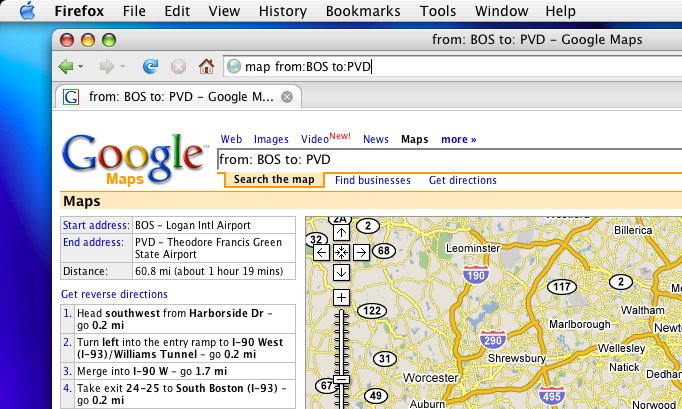
Figure 1, showing directions from Boston to Providence on Google Maps using a Firefox Smart Keyword, "map":
A Smart Keyword in Firefox gives you a shortcut for executing a search form on almost any webpage. Consider, for instance, how you search the web using Google: normally, you would navigate to
google.com, and then enter your search terms into the search form. But because Firefox has the Smart Keyword "google" bound to this search form, you can simply enter this keyword along with your search terms into Firefox's address bar.For example, if you want to see all the movies playing near the zip code 02145, you can type the following at the address bar:
google movies:02145This is the equivalent of entering the following at the address bar:
http://www.google.com/search?q=movies%3A02145Go ahead, Firefox users, try it!
Define your own Smart Keywords for Google Maps in Firefox
Firefox also allows you to define your own Smart Keywords. Because I like its interface, I frequently use Google Maps for driving directions, or to simply see the vicinity of some location I might want to visit. So, I made a Smart Keyword for Google Maps. I can now type in the following at the address bar in Firefox to get directions to drive from Boston's Logan Airport to Providence's T F Green Airport (see Figure 1):map from:BOS to:PVDHere's how you too can do this:
| 1. | Go to Google Maps (http://maps.google.com/). |
| 2. | Right click on the search form; select 'Add a keyword for this search...'. 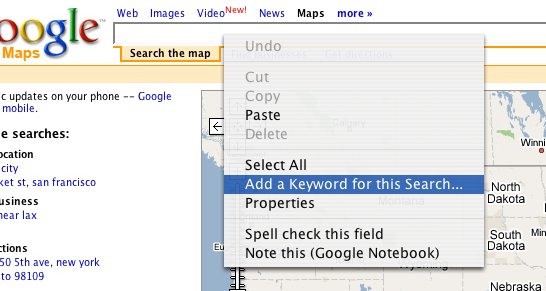 |
| 3. | Enter a name for this keyword (mine: "[map] Google Maps"), and your desired key binding (mine: "map"). Select which bookmarks folder you want to save your keyword in (I chose 'Quick Searches' under 'Bookmarks'). Your new key binding should be available for use, with a bit more tweaking. 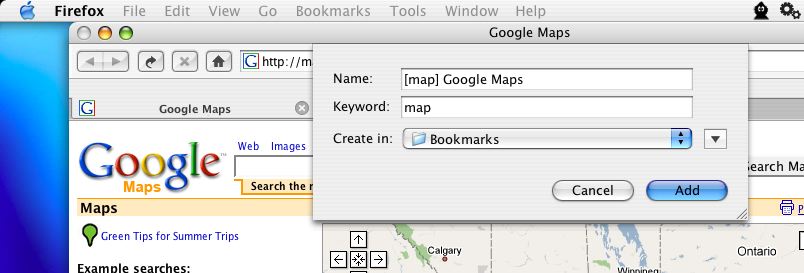 |
| 4. | Browse to the Bookmarks folder in Firefox. This is available in the menu item 'Manage Bookmarks' under the Bookmarks toolbar ('Organize Bookmarks', if you are using Firefox 2.0, or later). 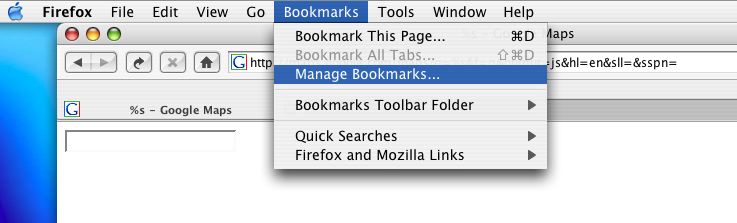 |
| 5. | Browse to the folder that contains your new Smart Keyword binding (I saved mine in the 'Quick Searches' folder under 'Bookmarks'). Select it, and then click on the 'Properties' button in the menubar (this will open a panel where you can edit this new binding). 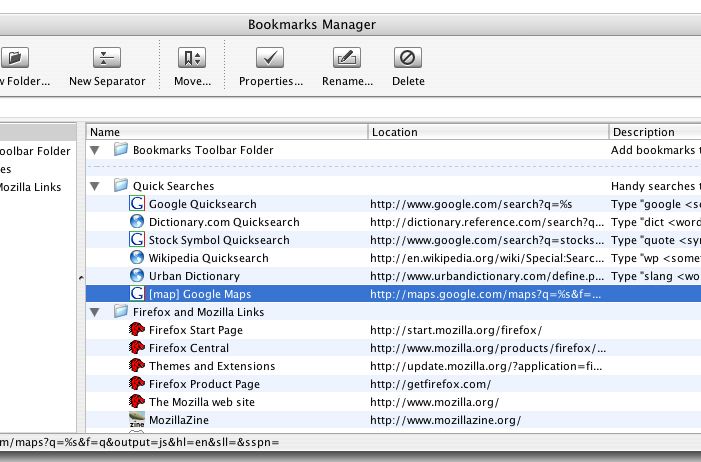 |
| 6. | Modify the 'Location' value, to this: http://maps.google.com/maps?q=%s&f=q&hl=en |
That's it! Try the search I demonstrated earlier on in the post (Figure 1).